Phone Storage Space Calculator
Your phone is slowing down. The storage warning pops up again. You’re tempted to delete your vacation photos, your favorite music, or even that app you’ve had for years. But you don’t want to lose anything important. The good news? You don’t have to. You can clear your phone storage without deleting everything you care about.
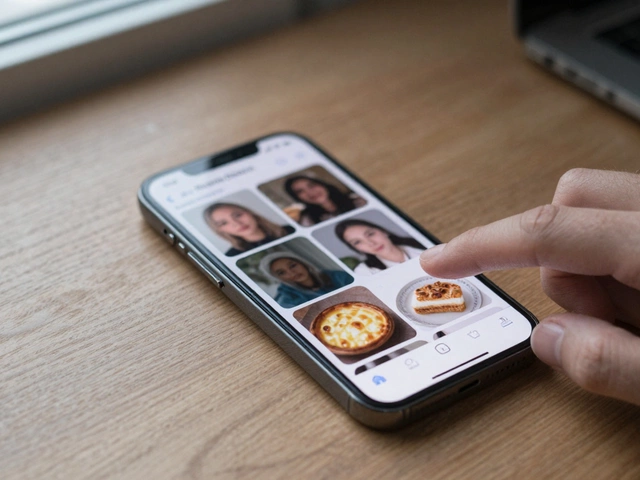
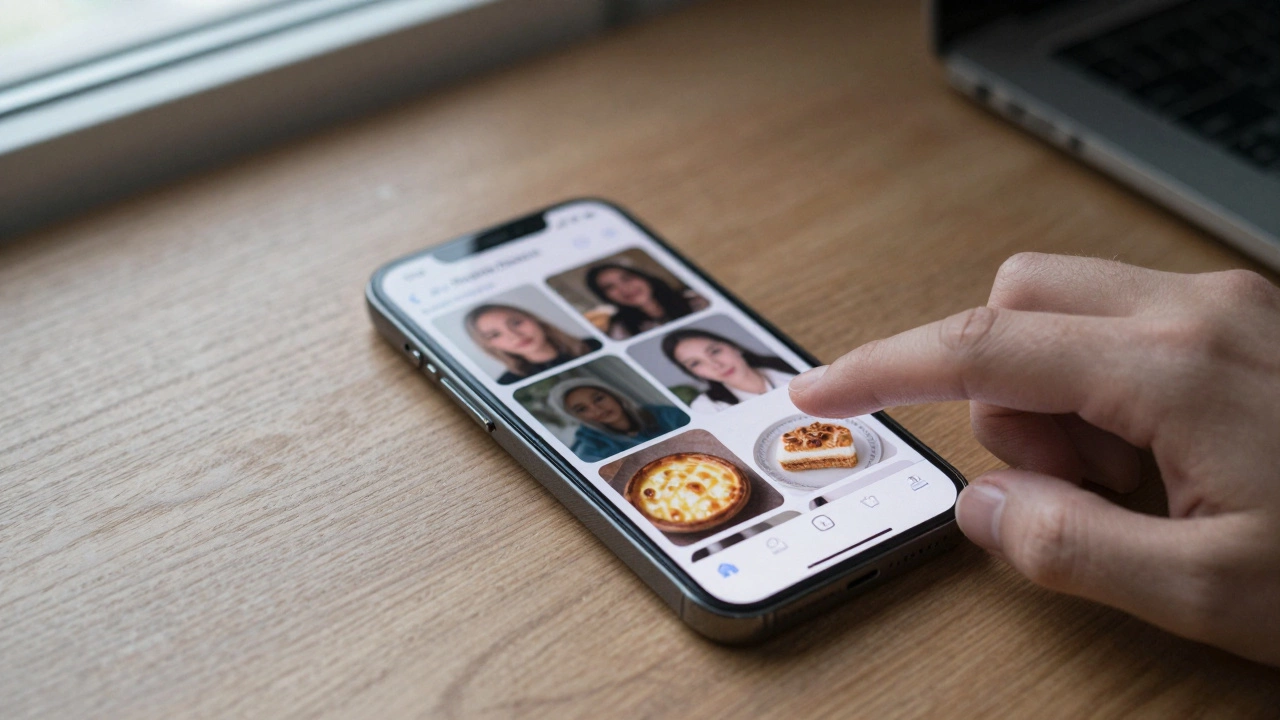
Start with the big offenders: photos and videos
Photos and videos are the #1 reason phones fill up. A single 4K video can take up 300 MB. A weekend trip might dump 2 GB onto your phone. And if you’ve been taking screenshots of text messages or memes for years, those add up fast.
Go into your gallery app and sort by size. On an iPhone, open the Photos app, tap Albums, then scroll to Recently Deleted. Anything there will be gone forever in 30 days unless you restore it. Empty it now if you’re sure you don’t need those blurry selfies or failed attempts at baking.
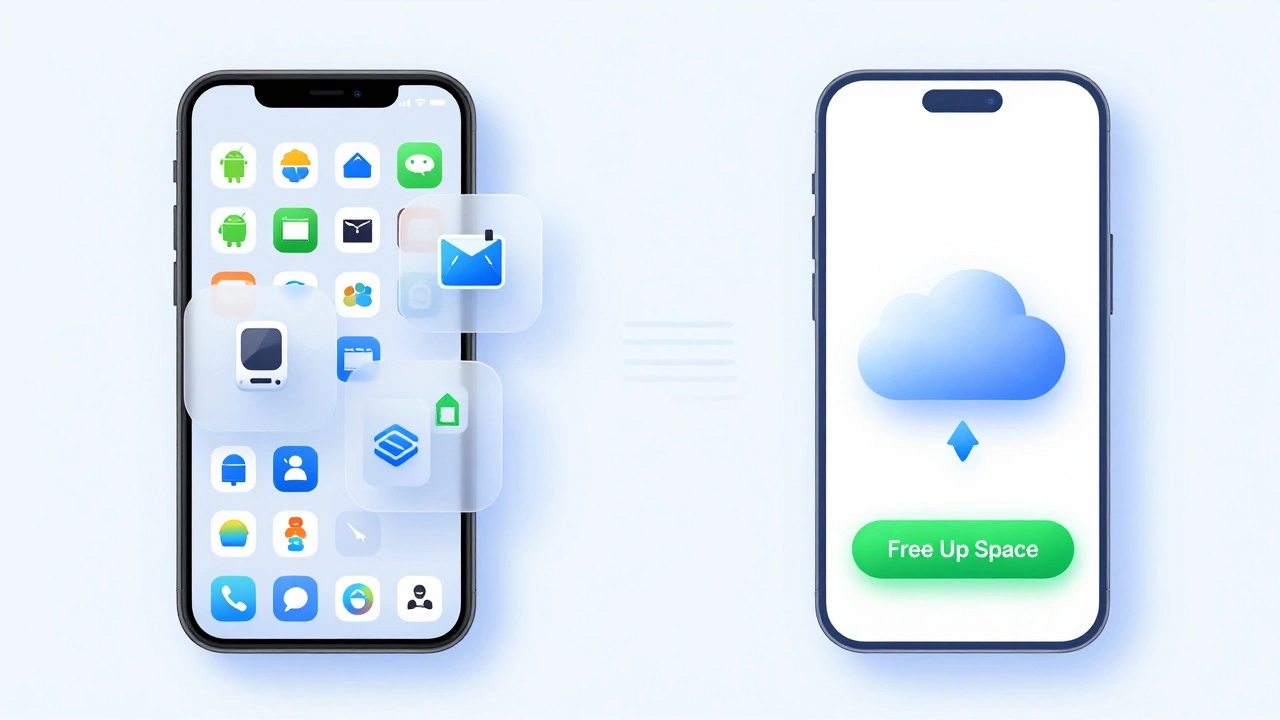
On Android, open Google Photos. Tap your profile picture, then Storage. It’ll show you exactly how much space your photos and videos are using. Tap Free up space. It’ll list photos already backed up to the cloud and let you delete them from your phone with one tap. Only delete what’s marked as Backed up.
Pro tip: Turn on automatic backup. Enable Back up & sync in Google Photos or iCloud Photos. That way, your originals live safely online, and your phone only keeps low-res copies or thumbnails. You get quick access without eating up storage.
Clear app cache and data
Apps like Facebook, Instagram, TikTok, and even your browser store temporary files called cache. These help things load faster-but they pile up. After a few months, a single app can hoard 1 GB or more.
On iPhone: Go to Settings > General > iPhone Storage. Wait a few seconds for the list to load. Tap any app. You’ll see its size and a button labeled Offload App. That removes the app but keeps your documents and data. You can reinstall it later without logging back in. If you see Delete App, that’s only if you’ve already offloaded it.
On Android: Go to Settings > Storage > Apps. Pick any app. Tap Storage & cache. Then tap Clear Cache. Do NOT tap Clear Data unless you’re ready to log in again. Clearing cache is safe and usually frees up 100-500 MB per app.
Focus on the apps you use daily. Social media, streaming apps, and browsers are the worst offenders. You’ll notice your phone feels snappier after just a few cache clears.
Uninstall apps you don’t use
How many apps did you install last year and never opened again? We all have them. That language app you tried for a week. The game you downloaded on a whim. The coupon app that never saved you anything.
On iPhone: Go to Settings > General > iPhone Storage. Scroll down. You’ll see a list sorted by storage use. Tap the ones you don’t recognize or haven’t used in months. If the app is under 100 MB and you haven’t opened it in 90 days, uninstall it.
On Android: Open Settings > Apps. Tap See all apps. Sort by Size or Last used. Look for apps with names you don’t remember. Uninstall them. Even small apps add up. Ten 50 MB apps = 500 MB freed.
Don’t worry about losing progress. Most apps sync your data to the cloud. When you reinstall, you’ll get your account, saved lists, and settings back.
Manage your downloads folder
Every time you download a PDF, a song, a receipt, or a meme, it lands in your Downloads folder. Most people forget it exists. But that folder can grow to 2 GB or more over time.
On iPhone: Open the Files app. Tap On My iPhone, then Downloads. Swipe left on any file you don’t need and tap Delete. Keep only what’s critical-tax forms, contracts, or documents you need offline.
On Android: Open the Files by Google app (or your phone’s default file manager). Tap Downloads. Tap the three dots in the top right, then Select. Delete everything older than 3 months. If you’re unsure, move files to Google Drive or Dropbox first.
Pro tip: Turn off automatic downloads in apps like WhatsApp. Go to WhatsApp > Settings > Chats > Chat Backup. Toggle off Auto-download media for photos, videos, and documents. That way, you only download what you choose.
Use cloud storage for big files
You don’t need to keep your entire movie collection, music library, or PDF archive on your phone. Use free cloud storage instead.
Google Drive gives you 15 GB free. iCloud gives you 5 GB. Dropbox gives you 2 GB. Use them. Move large files like:
- Movie downloads
- High-res music files
- PDFs of books or manuals
- Work documents
Once they’re uploaded, delete them from your phone. You can still access them anytime through the app. No need to keep two copies.
For music: Use Spotify, Apple Music, or YouTube Music. Stream instead of storing. For movies: Use Netflix, Disney+, or Apple TV. Download only what you’ll watch in the next 48 hours.
Check for duplicate files and old backups
Your phone might be holding multiple copies of the same photo or video. Or it’s keeping old iCloud or Google backups from previous phones.
On iPhone: Go to Settings > [Your Name] > iCloud > Manage Storage > Backups. See if you’re backing up an old iPhone you no longer use. Tap it and choose Delete Backup. That can free up 10-40 GB.
On Android: Open Google Drive. Tap the menu (three lines), then Backups. Look for old phone backups. Tap the one you don’t need and select Delete.
Use a tool like Files by Google (Android) or Photos (iPhone) to find duplicates. They’ll highlight identical files and let you remove them safely.
What not to delete
Some things look like junk but aren’t. Don’t touch:
- System updates (they’re small and necessary)
- App data for banking, health, or work apps (deleting this logs you out and may erase records)
- Text messages with important info (like boarding passes or receipts)
- Contacts saved locally (if not synced to iCloud or Google)
If you’re unsure about a file, move it to a cloud folder first. Wait a week. If you don’t miss it, delete it.
Set up habits to keep storage clean
Clearing storage once isn’t enough. You need a system.
- Once a month, go through your Downloads folder and delete old files.
- Every 3 months, check your app usage and uninstall what you haven’t opened.
- Turn on auto-backup for photos and videos so your phone doesn’t hold duplicates.
- Use streaming services instead of downloading music and movies.
- Enable Optimize iPhone Storage (iOS) or Free up space (Android) to keep only low-res versions of photos.
These small habits take 10 minutes a month. They prevent the panic of running out of space again.
Final check: How much space did you free?
After doing all this, go back to your storage settings. On iPhone: Settings > General > iPhone Storage. On Android: Settings > Storage. You should see a 2-8 GB increase. That’s enough to install a big game, take 500 new photos, or record an hour of video without another warning.
And you didn’t lose a single memory. Just made room for the ones you’ll make next.
Will clearing cache delete my photos or messages?
No. Clearing cache only removes temporary files apps use to load faster-like thumbnails or saved login cookies. Your photos, messages, contacts, and documents stay safe. Only clear data if you want to reset an app completely, and even then, most apps sync your info online.
Is it safe to delete the Recently Deleted folder on iPhone?
Yes, if you’re sure you don’t want those photos or videos back. The Recently Deleted folder holds deleted media for 30 days before permanent removal. Emptying it now just speeds up the process. Nothing else gets touched.
Why does my phone still say it’s full after deleting apps?
Because apps leave behind cache, documents, and data even after uninstalling. Also, photos, videos, and downloads aren’t tied to apps. Check your gallery, Files app, and cloud backups. Sometimes the biggest space hogs are things you didn’t think were part of your phone’s storage.
Can I use a third-party cleaner app to free up space?
Avoid them. Apps claiming to clean your phone are often scams or ad-filled. They rarely free up real space and can harm your privacy. Use built-in tools like iPhone Storage settings or Files by Google-they’re free, safe, and accurate.
How often should I clear my phone storage?
Every 3 months is ideal for most people. If you take a lot of photos or download files often, do it monthly. Set a calendar reminder. It takes less than 15 minutes and prevents slowdowns, crashes, and the stress of running out of space.