Phone Storage Recovery Calculator
Based on a standard 50GB phone.
Recommended Cleanup Actions
That dreaded notification pops up while you’re trying to take a photo or download an important file: "Storage Full." It’s frustrating, especially when your phone feels like it should have plenty of room. You might think you’ve deleted everything unnecessary, but the storage bar is still red. This happens more often than you’d expect because modern smartphones hide gigabytes of data in places you rarely check.
Freeing up memory isn’t just about deleting a few old photos. It involves understanding how your operating system manages space, identifying hidden data hogs, and setting up habits that prevent future clutter. Whether you use an iPhone or an Android device, the principles are similar, though the steps differ slightly. Let’s walk through exactly where your space goes and how to get it back.
Understanding Storage vs. RAM
Before diving into cleanup tactics, it helps to clarify what “memory” means in this context. Many people confuse storage with RAM. Storage is your phone’s long-term library-it holds your photos, apps, music, and documents. RAM (Random Access Memory) is short-term workspace that keeps active apps running smoothly. When your phone says “storage full,” it’s talking about the library, not the workspace. Clearing storage won’t directly boost speed unless you remove heavy apps that were clogging the system. For now, we’ll focus on reclaiming that permanent storage space so you can breathe again.
The Hidden Space Hogs: What’s Actually Using Your Storage?
If you look at your storage settings, you might see categories like “System Data,” “Other,” or “Documents.” These vague labels make it hard to know what to delete. In reality, three main culprits usually consume most of your space:
- Photos and Videos: High-resolution images and 4K videos are massive. A single minute of 4K video can take up to 400MB. If you haven’t backed these up to the cloud, they’re sitting idle on your device.
- App Cache and Data: Apps like social media platforms, streaming services, and browsers store temporary files to load faster over time. This cache can grow to several gigabytes without you noticing.
- Unused Apps: We all download apps for a specific purpose-maybe for a trip, a game trend, or a one-time task-and then forget about them. Each app includes its own database, images, and logs that continue to eat space even if you never open them.
Identifying which of these is your biggest problem is the first step. On both iOS and Android, go to Settings > General > iPhone Storage (or Settings > Storage on Android) to see a breakdown. The visual chart will tell you immediately where the bulk lies.
Step-by-Step: How to Free Up Space on iPhone
Apple devices manage storage tightly, which means you need to use built-in tools effectively. Here’s how to tackle each category:
1. Offload Unused Apps
iOS has a feature called “Offload App” that deletes the app itself but keeps your documents and data. This is perfect for games or productivity apps you might need again later. To do this, go to Settings > General > iPhone Storage. Tap on an app you rarely use, then select “Offload App.” When you reinstall it later, your data will be there. This alone can free up hundreds of megabytes per app.
2. Manage Photos and Videos
If photos are your biggest space consumer, enable Optimize iPhone Storage. Go to Settings > Photos and toggle this on. It replaces full-resolution images on your device with smaller, device-optimized versions while keeping the originals in iCloud. You’ll still see all your photos, but they’ll take up a fraction of the space. Downloading only when needed saves significant room.
3. Clear Safari Cache and Downloads
Safari accumulates a lot of cached web data. Go to Settings > Safari > Clear History and Website Data. Also, check the Files app for any downloaded PDFs or documents from messages. Delete anything you no longer need. This quick sweep can recover several hundred megabytes.

Step-by-Step: How to Free Up Space on Android
Android gives you more direct control over files, which is great for deep cleaning but requires a bit more manual effort.
1. Use Google Files App
Most Android phones come with the Files by Google app. Open it and tap “Clean.” It automatically identifies junk files, duplicate photos, large videos, and apps you haven’t used in months. Review the suggestions and hit delete. It’s safe, fast, and often recovers the most space with the least effort.
2. Clear App Cache Manually
For heavy users of apps like Instagram, TikTok, or Spotify, cache builds up quickly. Go to Settings > Apps, select the app, then tap Storage > Clear Cache. Note: Do not tap “Clear Data” unless you want to reset the app entirely (which logs you out and deletes preferences). Clearing cache just removes temporary files, freeing up space without losing your account info.
3. Uninstall Unused Apps
Android doesn’t have an “offload” feature like iOS, so if you don’t need an app, uninstall it completely. Long-press the app icon and drag it to the trash bin, or go to Settings > Apps and uninstall. Check your “Downloads” folder too-many people save APK files or documents here and forget about them.
Cloud Storage: The Best Long-Term Solution
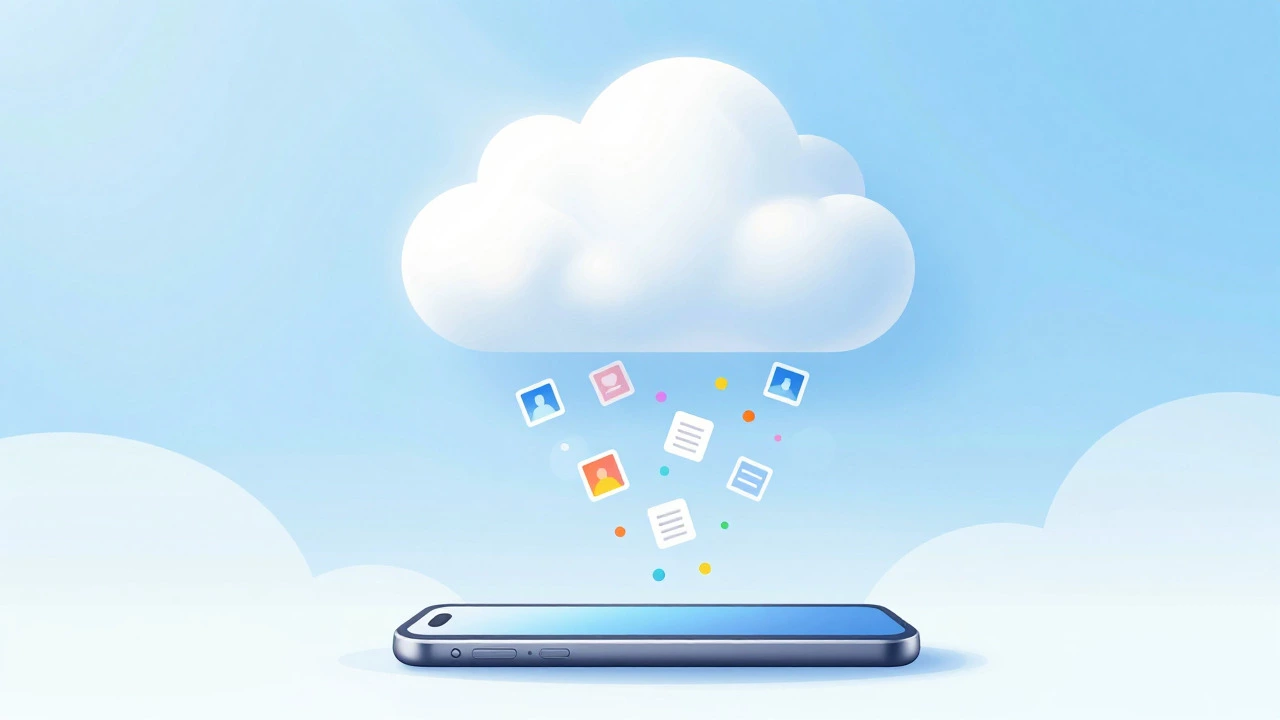
Deleting files manually is a temporary fix. The real solution is moving data off your device entirely. Cloud storage services act as an external hard drive for your phone.
| Service | Free Tier | Best For | Integration |
|---|---|---|---|
| iCloud | 5 GB | iPhone users, seamless backup | Built into iOS |
| Google One | 15 GB | Android users, Gmail attachments | Built into Android |
| Dropbox | 2 GB | File sharing, document management | Cross-platform |
| Microsoft OneDrive | 5 GB | Office users, Windows integration | Cross-platform |
Start by backing up your photos and videos. Both iCloud and Google Photos offer automatic backup features. Once your media is safely in the cloud, you can delete the local copies from your phone. This is the single most effective way to regain gigabytes of space. Just remember to verify that the upload completed before hitting delete.
Preventing Future Clutter: Habits That Save Space
Once you’ve cleared out the mess, keep it clean with a few simple habits:
- Review monthly: Set a reminder once a month to check your storage usage. Delete screenshots, memes, or videos you’ve already shared.
- Stream instead of download: Avoid downloading movies or music for offline listening unless necessary. Streaming uses less permanent storage.
- Use messaging wisely: WhatsApp, Telegram, and iMessage save every image and video sent to you. Turn off auto-download for media in your chat settings. This prevents your inbox from becoming a digital landfill.
- Keep apps updated: Developers often optimize app size in updates. An outdated app might be bloated with old code and temporary files.
When to Consider a Factory Reset
If your phone is still sluggish after clearing space, or if “System Data” takes up an unreasonable amount of room, a factory reset might be the answer. This wipes everything and restores the phone to its original state. Before doing this, ensure you have a complete backup of your contacts, photos, and important files. After resetting, restore only what you need. This eliminates years of accumulated digital debris and often makes the phone feel brand new.
Does clearing cache delete my photos?
No. Clearing cache only removes temporary files used by apps to run faster. Your personal photos, contacts, and documents remain untouched. However, always double-check before tapping “Clear Data,” which does reset app settings and may delete locally stored content within that specific app.
Why does my phone say storage is full when I’ve deleted everything?
This is often due to “System Data” or “Other” files, which include OS caches, update backups, and residual files from deleted apps. Restarting your phone can sometimes clear these temporary indexes. If the issue persists, offloading apps or using a cloud backup service to move photos off-device is the best solution.
Is it better to use an SD card or cloud storage?
Cloud storage is generally safer and more convenient because it syncs across devices and protects against loss if your phone breaks. SD cards are cheaper for bulk storage but can be lost, damaged, or slow down your phone if the card quality is poor. Most modern phones rely on cloud solutions for seamless access.
How much space should I keep free on my phone?
It’s recommended to keep at least 10-15% of your total storage free. This allows the operating system to perform maintenance tasks, create temporary files, and run smoothly. If your storage is constantly near capacity, your phone may lag, crash apps, or fail to install updates.
Can deleting old texts free up space?
Yes, especially if those conversations contain many photos, videos, or voice notes. Plain text messages take up negligible space, but media attachments add up quickly. Go to your Messages app, find long threads with media, and delete them. On iPhone, you can also set messages to expire after 30 days or a year in Settings > Messages > Keep Messages.